String — Interactive Lessons
You describe the lesson. Your student plays it
Not a sheet to print and not a video to watch. It is an activity your student walks through one screen at a time, and every answer is marked the moment it is given.
By the numbers
23
question types a lesson can ask
12
kinds of card a lesson is built from
169
interactive figures, ready to use
7
ways a student answers on a drawing
You write one line. It becomes a lesson you send
Four steps, and the first one takes under a minute.
- 1
Say what you're teaching, and to whom
The grade, the subject and the topic, then two questions: where it will be used — in class or at home — and what for: teaching it for the first time, reviewing it, or checking what they already know.
- 2
Describe the lesson in one sentence
Write it the way you'd say it to a colleague in the staff room. No fields, no templates, no advanced options before you have seen anything.
- 3
Delete whatever doesn't look like your class
Cards arrive as suggestions and none of them enters the lesson until you accept it. Drag to reorder, delete a card, or ask for a simpler version for the students who are struggling.
- 4
Send one link
Your student opens it on their phone, types a first name, and starts. No account, no app to install, no password to forget.
The lesson is yours, not the output of a black box
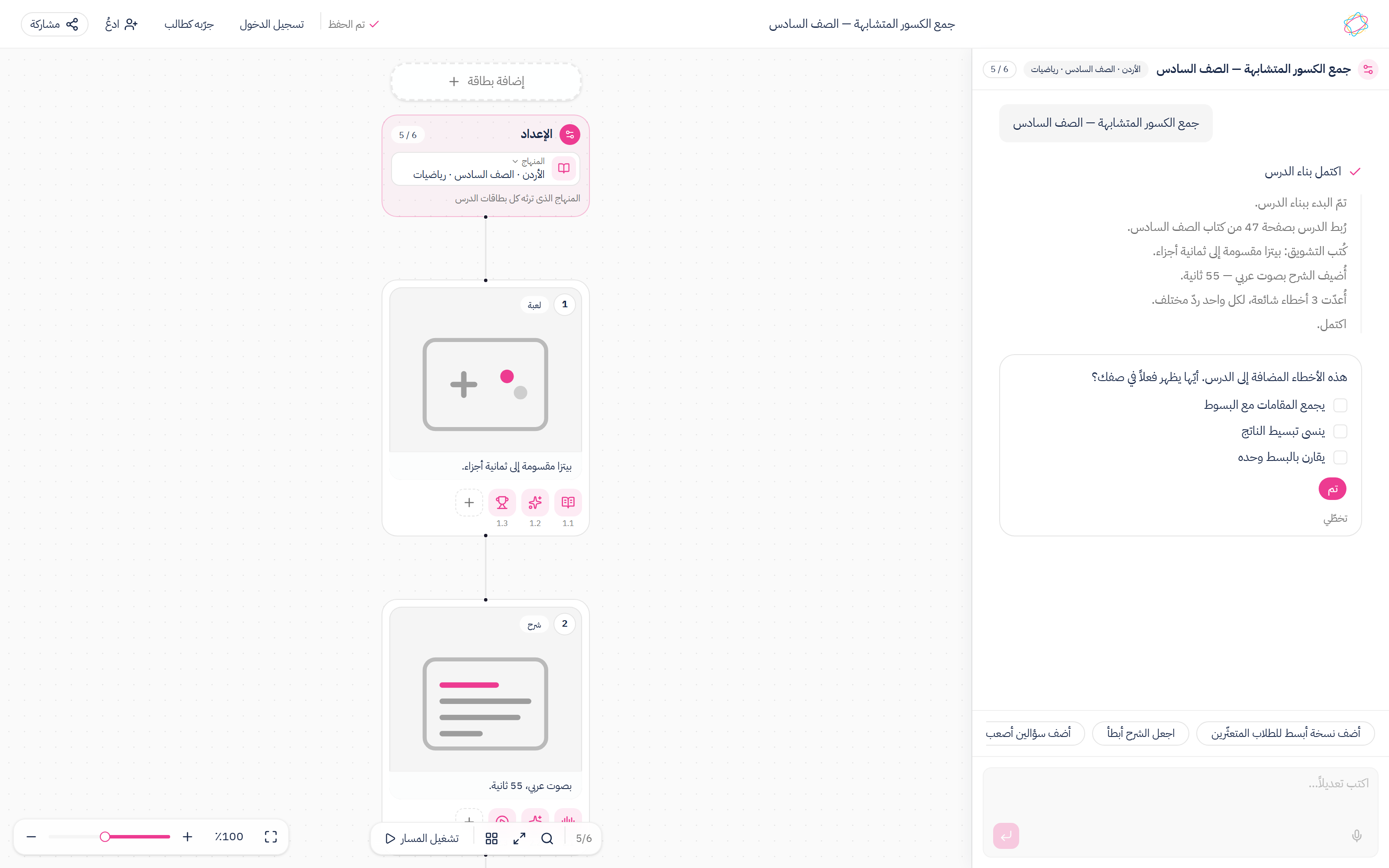
Everything that comes out opens up. The card, the question, the drawing inside the question, the order of the whole lesson — none of it is locked, and none of it changes on its own once you are happy with it.
- Drag the cards to reorder the lesson, or delete one.
- Open any question and change its wording, its options and its right answer.
- Swap the figure inside a question, or change what the student is asked to do with it.
- Layer up to five things onto one card: narration, a companion, a guided walkthrough.
What a lesson can ask
23 question types, and seven ways to answer on a drawing — all marked by the same engine you saw in the preview.
Written questions
- Multiple choice
- Choose all that apply
- True or false
- Short answer
- Long answer
- Numeric answer
- Fraction answer
- Fill in the blank
- Multi-part question
- Circle the right one
- Complete the table
- Comparison grid
Ordering and sorting
- Put steps in order
- Build a sentence from a word bank
- Match pairs
- Sort into groups
Answering on the drawing itself
- Mark a point on a scale
- Tap the right region
- Shade the parts
- Plot a point on the plane
- Drag a label to where it belongs
- Type in the box
- Draw it yourself
What your student gets
Built for the phone in their hand, not the computer in the lab.
One link, no accounts
They open the link, type a name, and start. No sign-up, no email, no whole class stuck at a password screen.
They know at once if it was right
No waiting for the next period. The verdict lands as they answer, and when they're wrong the right answer is named rather than left hanging.
They answer on the drawing
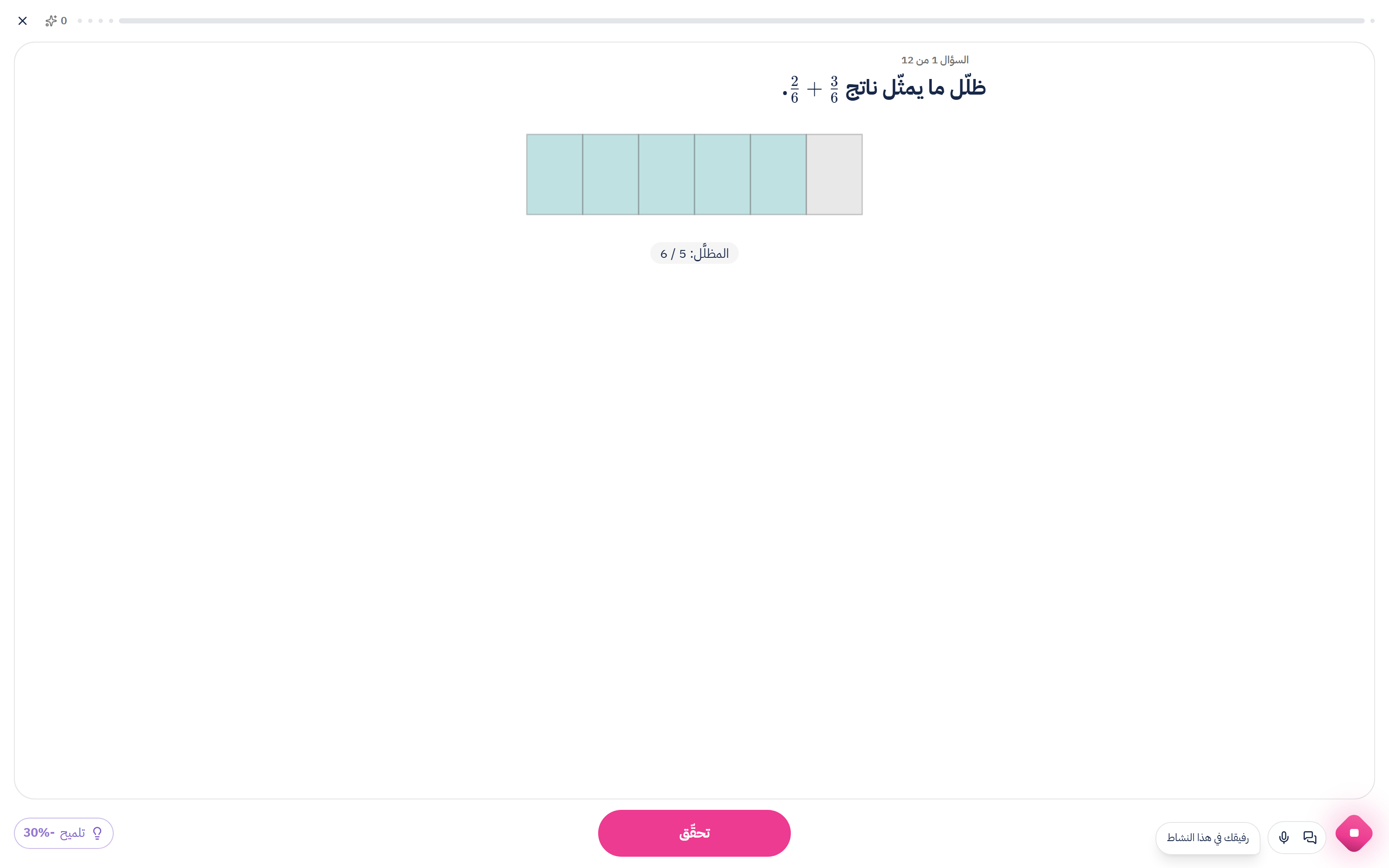
They shade five sixths of a fraction bar, plot a point on the plane, tap the region two sets share. The drawing is the answer.
Arabic and English, both
The interface, the questions and the figures, right-to-left and left-to-right. Western numerals in both, the way a student writes them on paper.
What still needs your own eyes
Long answers, comparison grids and free drawings are not machine-marked. They are handed to you rather than guessed at, because an invented mark on an essay is worse than no mark. Everything else is marked the moment it is answered.
Common questions
Read next
Exams
A paper in the real national-exam format, ready to print
Questions, figures, header and marks — on A4 exactly as your student will see them.
Reports
See who understood and who slipped, before the next lesson
One paper is enough: a map of the class skill by skill, the wrong idea your students share, and a written report for every one of them.
Start with one lesson
Write the topic of your next period and see what comes out before you decide anything.